

To speed up a slow Windows 11 PC for free, restart it, cut the apps that start with Windows, free up disk space, install Windows and driver updates, switch to the right power mode, and scan for malware. The first two ways cost nothing and fix most slow PCs. Only if the PC is still slow after all nine should you spend money on an SSD or more RAM.
A slow PC rarely has one big problem. It usually has several small ones stacked up: a dozen apps starting with Windows, a nearly full drive, an old graphics driver, and a browser with 40 tabs. That is why random tweaks and "optimizer" tools rarely help. Find the resource that is maxed out, then fix that one first.
This guide is written for Windows 11, and most steps are similar on Windows 10. Windows 10 menus differ a little, and it no longer receives free security updates since October 2025, so moving to Windows 11 where your PC supports it is worth considering.
First, Find What Is Slowing Your PC
A PC slows down when one resource runs out: processor, memory, disk, or cooling. Task Manager shows which one in about two minutes.
- Press Ctrl + Shift + Esc and open the Performance tab.
- Click CPU, Memory, and Disk in turn and note which graph sits near the top during normal use. The Disk entry also shows whether your drive is an HDD or an SSD.
- Open the Processes tab and click the CPU, Memory, and Disk column headers to sort. The top three entries in each column are your suspects.
Then match what you notice to the right fix:
- Slow boot and a sluggish first few minutes: too many startup apps. Start with ways 1 and 2.
- Disk at 100%: a nearly full drive or an old hard drive. Use ways 4 and 5, and see the SSD upgrade at the end.
- Memory above 80% with few apps open: background load or too little RAM. Use ways 2 and 3, then consider more RAM.
- Loud fans and high CPU with nothing open: malware, a runaway process, or dust. Use ways 8 and 9, and clean the vents.
- Lag that began after an update: outdated drivers. Go to way 6.
1. Restart Your PC (Do Not Just Shut Down)
Restart clears memory completely. A normal shutdown with Windows Fast Startup can resume part of the old session, so a PC that is "shut down" every night may not have had a full restart in weeks. Restart once before you change anything else, and make it a weekly habit.
2. Turn Off Startup Apps
Every app that launches with Windows competes for memory and disk during your busiest minutes. Cutting them is the fastest way to fix a slow startup and boot time.
- Open Settings > Apps > Startup, or the Startup apps tab in Task Manager.
- Sort by Startup impact.
- Switch off anything you do not need the moment you sign in, such as chat apps, game launchers, music apps, updaters, and the "helper" tools that printer and laptop makers install.
Leave security software, touchpad drivers, and audio drivers alone. If you are unsure about an entry, search its exact name first. Disabling does not uninstall anything, so you can turn it back on.
3. Tame Your Browser and Background Apps
Browsers are often the biggest memory users on a home PC.
- In Chrome, open Settings > Performance and turn on Memory Saver.
- Open
chrome://extensionsand remove extensions you do not recognize or use. - In Task Manager, right-click any app that uses a lot of memory and that you are not using, and choose End task.
As a rough rule, an app holding more than 1 GB of memory that you are not using is worth closing. Reopen it only when you need it.
4. Free Up Disk Space
A nearly full drive slows the whole system, because Windows needs room for temporary files, updates, and virtual memory. Keep roughly 10 to 15 percent of the drive free as a working rule.
- Open Settings > System > Storage.
- Select Temporary files and tick the safe categories, such as temporary files, Windows Update cleanup, and the Recycle Bin.
- Click Remove files.
If you see Previous Windows installation(s), removing it often frees 10 GB or more, but you lose the option to roll back the last upgrade. Only remove it once you are happy with the current version.
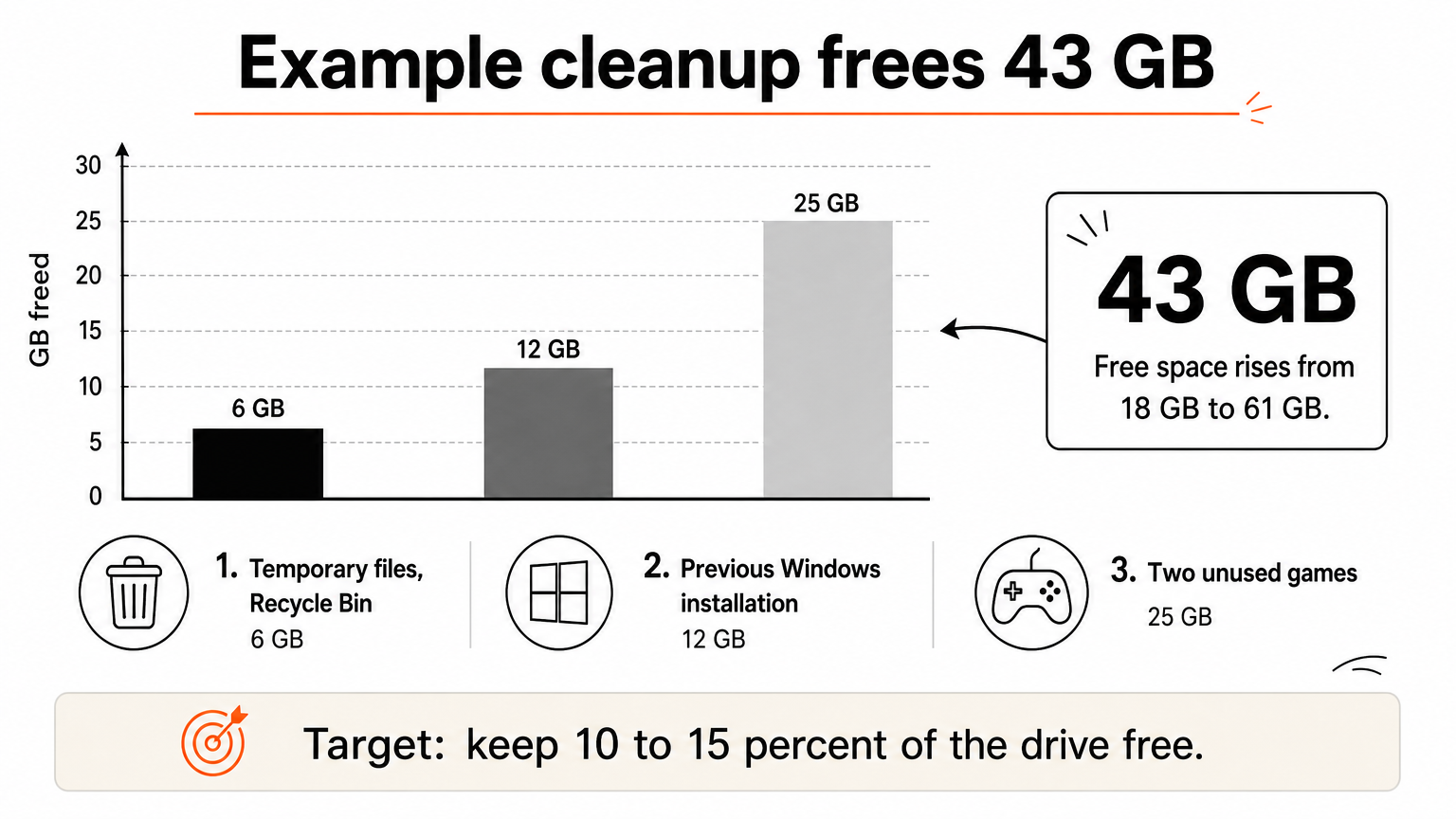
Here is a worked example. A drive reports 238 GB total with 220 GB used, which leaves 18 GB free, about 7.6%. Fifteen percent of 238 GB is about 36 GB, so you need to free roughly 18 GB more. Clearing temporary files and the Recycle Bin (6 GB), removing the previous Windows installation (12 GB), and uninstalling two unused games (25 GB) frees 43 GB. Free space is then 61 GB, about 26%, well above the target.
5. Uninstall Unused Apps and Turn On Storage Sense
- Go to Settings > Apps > Installed apps and sort by size. Games and old creative suites are usually the largest.
- Uninstall what you no longer use.
- Check your Downloads folder, which quietly collects installers and ZIP files.
- Back in Settings > System > Storage, switch on Storage Sense so Windows clears junk on a schedule.
For more options, see our guide to safe ways to free up storage space on Windows 11.
6. Install Windows and Driver Updates
Old drivers and missing updates cost more speed than most people expect.
- Open Settings > Windows Update and click Check for updates.
- Install everything, then restart.
- Open Advanced options > Optional updates and install any driver updates listed.
- For graphics, download the latest driver from NVIDIA, AMD, or Intel, or from your laptop maker's support page.
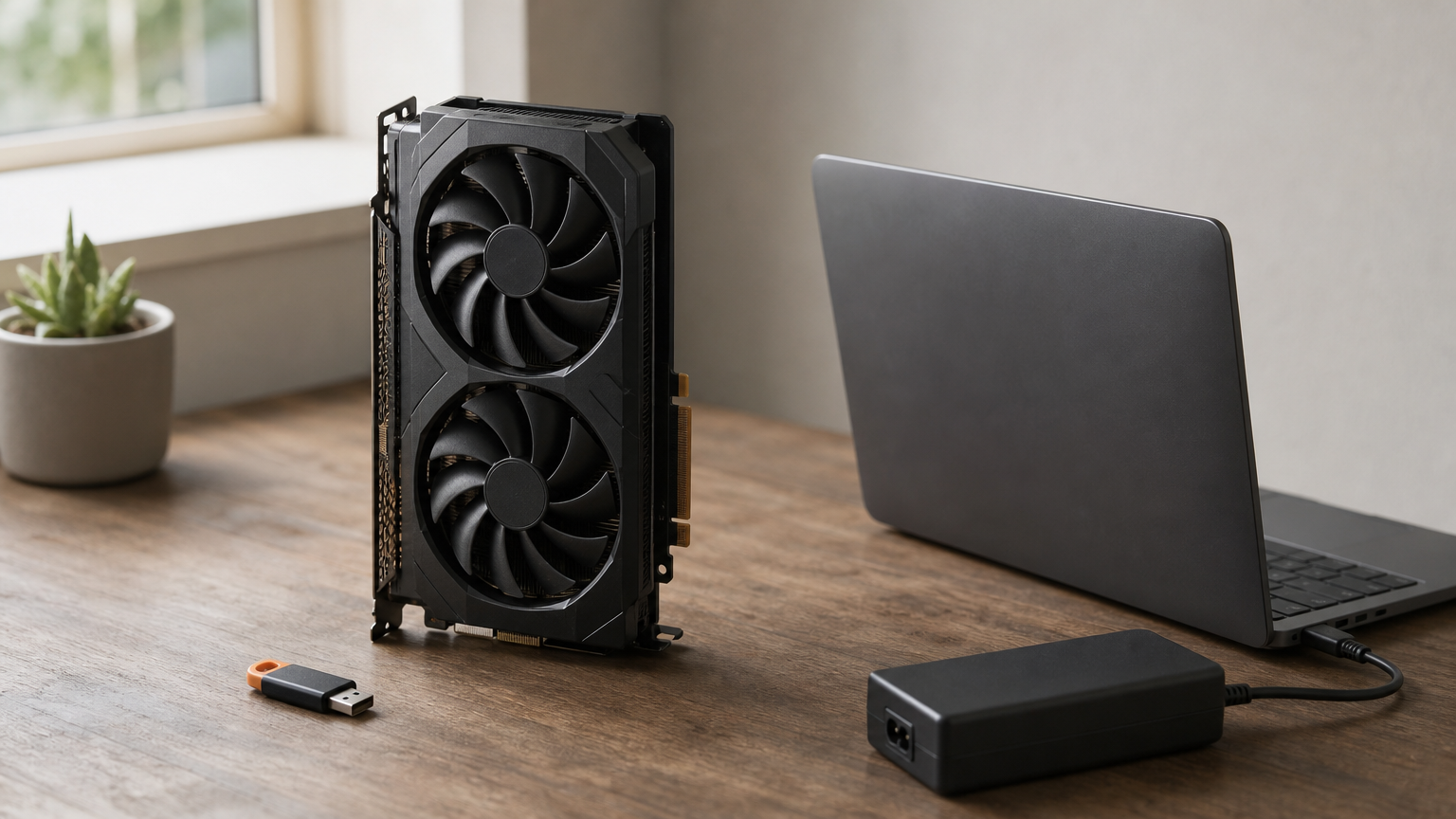
A stale graphics driver can cause stutter in browsers and video apps, so it is worth checking even if nothing looks broken.
7. Switch Power Mode and Reduce Visual Effects
- On a desktop or a plugged-in laptop, open Settings > System > Power & battery and set Power mode to Best performance. Expect shorter battery life on a laptop, so switch back when unplugged.
- Open Settings > Accessibility > Visual effects.
- Turn off Animation effects and Transparency effects.
On older or low-end PCs this can make menus and windows feel snappier. On a fast PC you may not notice much difference.
8. Scan for Malware
Adware and cryptominers can use processor time while hiding in the background. An offline scan runs before Windows loads, so it can catch threats that hide from a normal scan.
- Open Windows Security > Virus & threat protection > Scan options.
- Choose Microsoft Defender Antivirus (offline scan).
- Click Scan now. The PC restarts and scans before Windows loads.
9. Repair System Files and Check the Drive
Corrupted system files and drive errors can cause freezes and slowdowns. Windows includes free repair tools. Open Terminal (Admin) or Command Prompt as administrator and run these one at a time, waiting for each to finish.
sfc /scannow
DISM /Online /Cleanup-Image /RestoreHealth
chkdsk C: /scan
sfc checks and repairs protected system files. DISM repairs the Windows image that sfc relies on, and it needs an internet connection. chkdsk C: /scan checks the drive for errors without taking it offline. Restart afterwards and see whether the PC feels better.
If It Is Still Slow: Hardware Upgrades
If all nine ways did not help enough, the hardware is the limit. Two upgrades matter most: an SSD and more RAM. Check Task Manager again to decide which one you need.
Replace a hard drive with an SSD
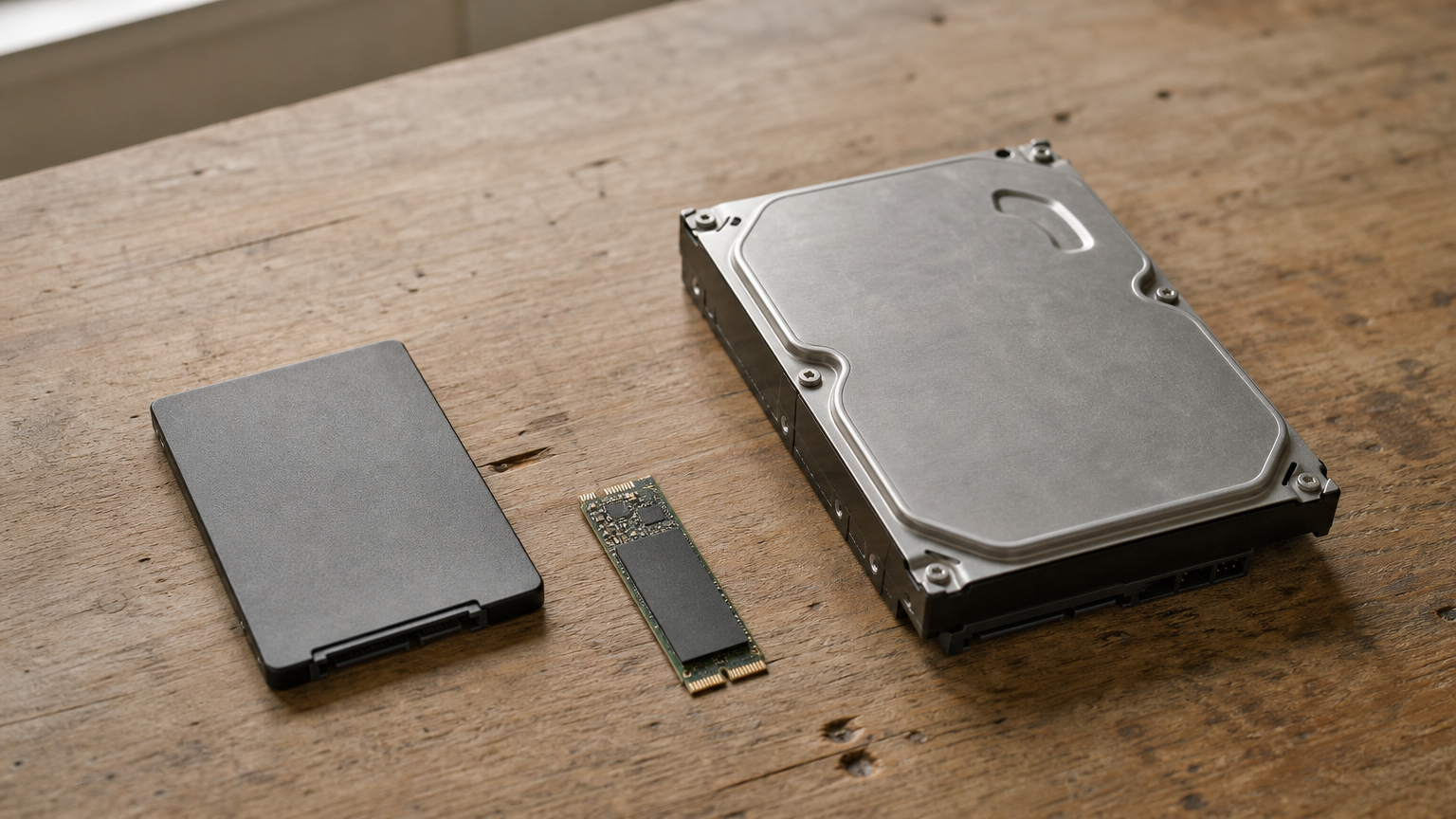
If Performance > Disk shows HDD, an SSD is the single biggest upgrade you can make. Boot times, app launches, and file searches all improve because an SSD has no moving parts. Many laptops and desktops can take a SATA SSD, and many newer PCs accept an M.2 NVMe drive, so check your model's specifications before buying. Back up your files, then clone the old drive with the SSD maker's tool or do a fresh install.
Add RAM and check heat
Open Performance > Memory. If usage stays above 80% with only your normal apps open, you need more RAM. 8 GB is workable for light use, and 16 GB is a comfortable target for many browser tabs, office apps, and video calls. Some laptops have soldered memory that cannot be upgraded, so look up your model first.
Heat slows a PC too. If the fans are loud and the case is hot, clean the vents and fans with compressed air.
Frequently Asked Questions
What is the fastest way to speed up my PC for free?
Restart it and turn off startup apps. These two steps take minutes, cost nothing, and fix many slow PCs. Then free up disk space and install updates.
Do PC optimizer or cleaner programs work?
Most do little that Windows cannot already do for free, and some add their own startup items and pop-ups. The built-in steps in this guide are safer.
How much free disk space should I keep?
A working rule is 10 to 15 percent of the drive. Windows needs room for updates, temporary files, and virtual memory.
Will more RAM or an SSD make my PC faster?
It depends on the bottleneck. If Task Manager shows an HDD at 100% disk use, an SSD helps most. If memory stays above 80% with normal use, more RAM helps. If neither is true, upgrading may not change much.
Is it safe to run sfc and DISM?
Yes. They repair Windows system files and do not delete your documents. If they report problems they cannot fix, back up your files and consider a reset.
Keep Your PC Fast After the Fix
Diagnose in Task Manager, cut startup apps, keep 10 to 15 percent of your drive free, update Windows and drivers, and upgrade the drive or RAM only when the numbers show you need to. To keep the gains, restart weekly, leave Storage Sense on, and check Startup apps after you install new software. More step-by-step fixes are on the Byteswift Digital home page.
